Your Parser can now fetch content on a schedule
Colbot Scheduled is now live. Alongside manually selecting files for extraction, you can now add scheduled inputs to an existing Parser. Scheduled fetches source content in the cloud and sends changed content for AI extraction, organizing the results into your existing Google Sheets fields.
Manual uploads work well for a file you already have. But when you need to keep checking the same source, collecting and submitting its content becomes repetitive work. Scheduled moves that work to the cloud: set the source and interval, and your computer and browser can stay closed.
Scheduled extends Colbot Parsers. It uses the Parser’s existing extraction instructions, deduplication, and review settings. Web pages and JSON APIs are the two input types available today.
A web page example: tracking product announcements
Suppose you are following a product’s updates and want to keep each announcement’s title, date, summary, and original link in one Google Sheet, ready to filter, compare, and revisit.
With Scheduled, that page can become an ongoing input for your Parser. Here is an example showing how the workflow comes together.
These screenshots were captured in Colbot’s local demo environment. The page URL and announcements are sample data. Click an image to view it at full size.
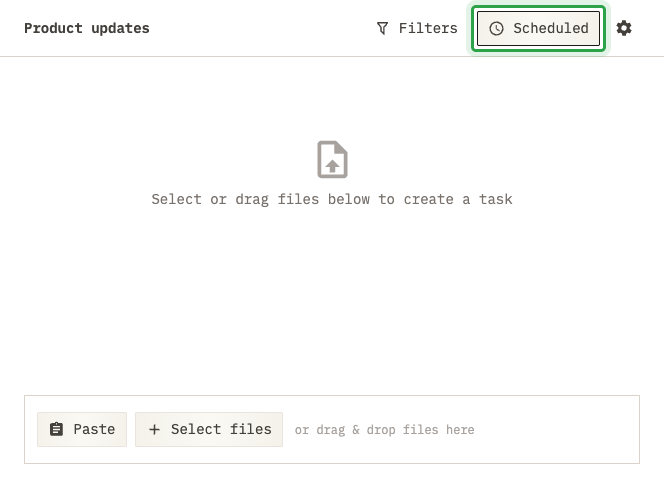
1. Open Scheduled
This Parser already has four fields: Title, Date, Summary, and URL. The existing file input remains available, while Scheduled lets the Parser keep receiving content from a fixed source.
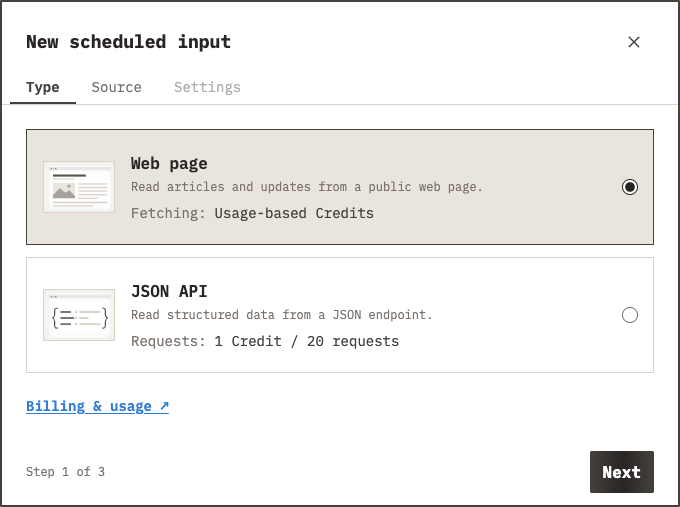
2. Choose Web page
The source in this example is a public product announcement page, so we choose Web page. For sources that provide content through an endpoint, JSON API is also available. Both send the fetched content to the same Parser.
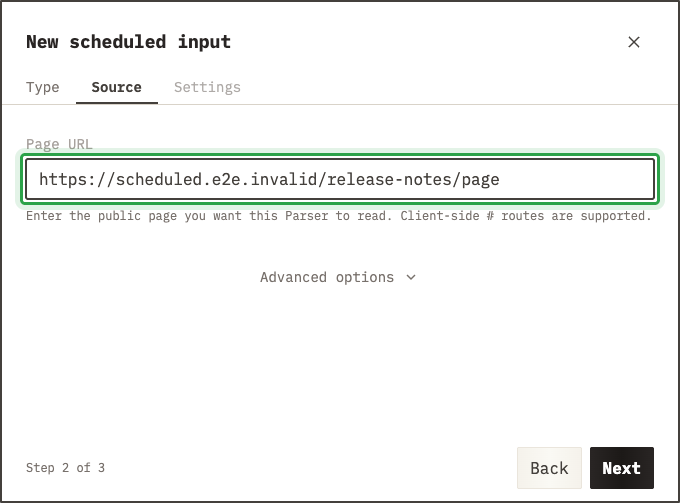
3. Set the page URL
The URL points to the announcement page you want to follow. Each subsequent run fetches content from this address.
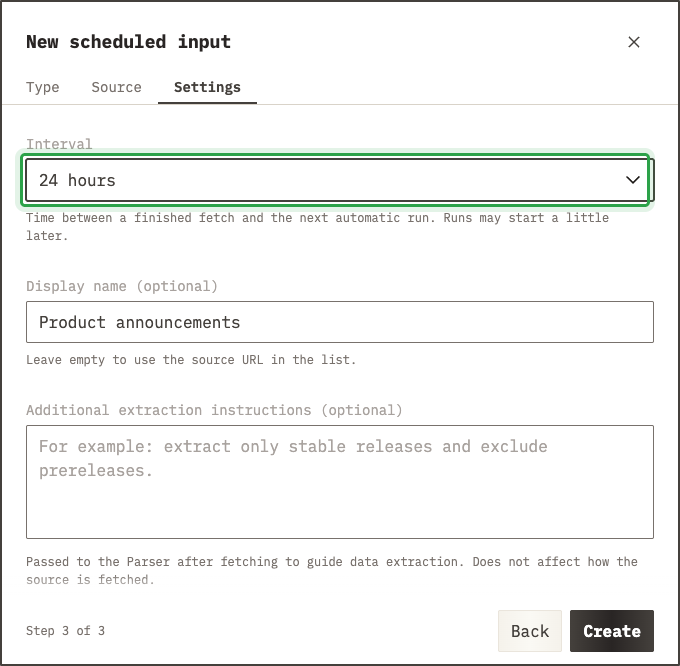
4. Set the interval
Interval determines the gap between fetches. This example uses 24 hours for product updates that do not need frequent checks.
For more fetching options and access requirements, see Web page inputs in the Scheduled guide.
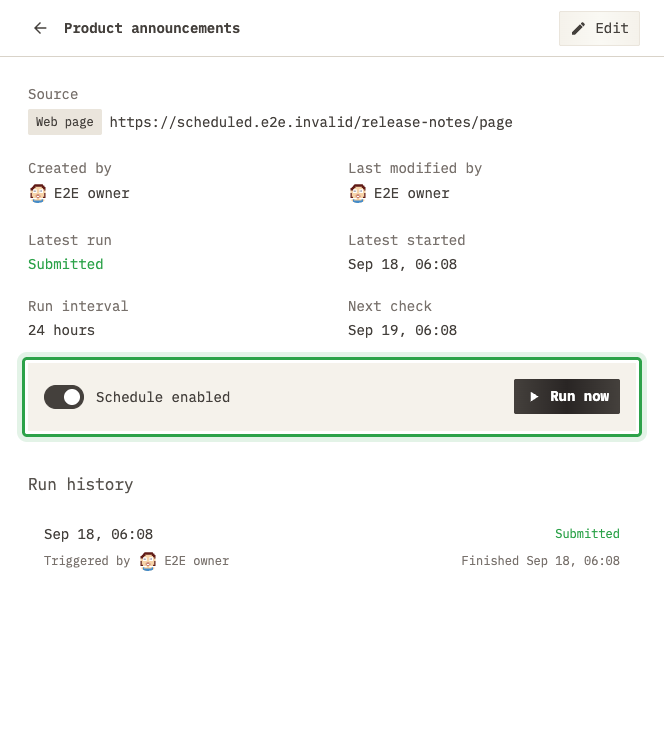
5. Enable scheduled cloud runs
Once enabled, Scheduled fetches content automatically in the cloud at the configured interval. You can also use Run now to trigger a run manually and see the fetching and extraction results.
6. View the extraction results
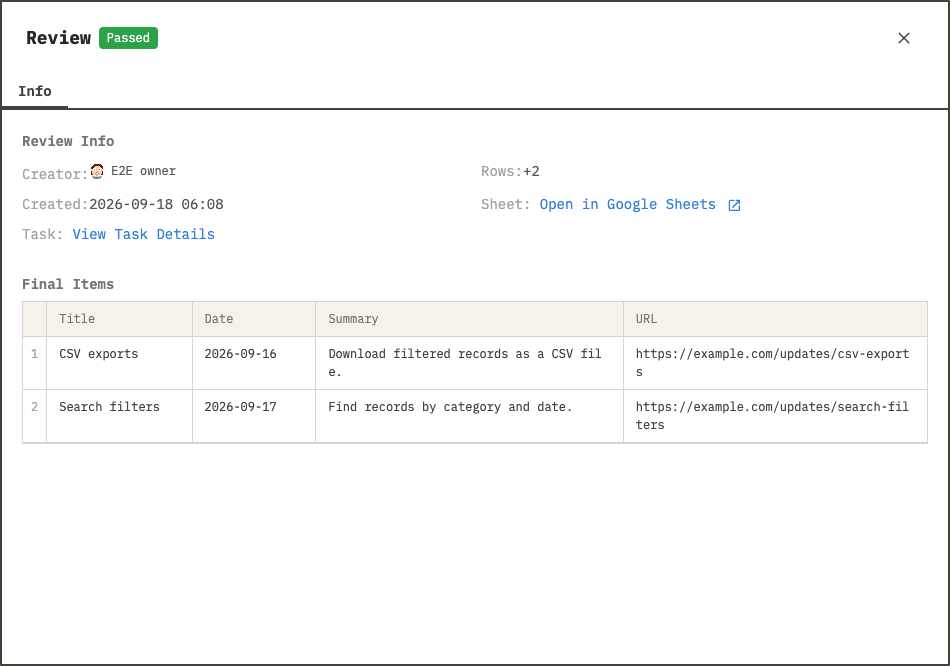
The fetched announcements go to the Parser and are organized into the same four columns. This example uses automatic approval. Teams that need manual review can keep their existing review workflow and write results to Google Sheets after approval.
On subsequent fetches, unchanged input does not create another parsing task. Changed content is sent to the Parser again. For the details of change detection and deduplication, see what happens when content changes little or not at all.
Scheduled and Web Clipper: automatic fetching or capture as you browse
Scheduled is suited to following a known source over time: enable automatic cloud fetching, or trigger a run with Run now. Web Clipper lets you capture the page you are viewing, or a selected region, in your own browser. The two can work together.
| Capability | Scheduled | Web Clipper |
|---|---|---|
| Manual runs | Supported | Supported |
| Automatic scheduled runs | Supported | Not supported |
| Automatic fetching while your computer is off | Supported | Not supported |
| Where content is fetched | Cloud | Your browser |
| Capture pages using your browser’s login session | Not supported | Supported |
| Select a page region with your mouse | Not supported | Supported |
| Include or exclude content by CSS selector | Supported | Not supported |
| Wait for content before fetching | Automatic, as configured | You wait manually |
| Click or scroll before fetching | Automatic, as configured | You interact manually |
| AI field extraction | Supported | Supported |
| Use the Parser’s review workflow | Supported | Supported |
| Write results to Google Sheets | Supported | Supported |
Supported Not supported
Scheduled fetches web pages in the cloud without signing in or carrying over your local browser’s login session. Web Clipper captures content already displayed in your browser, making it useful for pages you need to sign in to view. You can also select a region with your mouse to submit only the area you want to extract.
For pages that reveal information after a delay or interaction, Scheduled can wait for a specified duration or for an element matching a CSS selector to appear, then perform clicks or scrolls in sequence before fetching content. You can also include or exclude content using CSS selectors. With Web Clipper, you wait for the page to load, complete any clicks or scrolling, and then start the capture manually.
Both methods send content to the Parser, which uses its existing fields, deduplication, and review settings before organizing the results in Google Sheets. Use Scheduled to keep following public sources, and Web Clipper to add information discovered while browsing, content visible after signing in, or a region you select on the spot.
Add a scheduled input to your Parser
If you already use Colbot to organize file content in Google Sheets, start with one source you want to follow and add it as a Scheduled input to the same Parser.
Running Scheduled requires the Parser’s team to have an active Basic subscription. Fetching and Parser extraction are charged separately. See running requirements and billing or the FAQ for the details.